
Ashes of the Singularity II Best Settings for Performance
A practical settings guide for Ashes of the Singularity II: resolution, presets, shadows, VSync and the Windows tweaks that help a CPU-bound RTS.
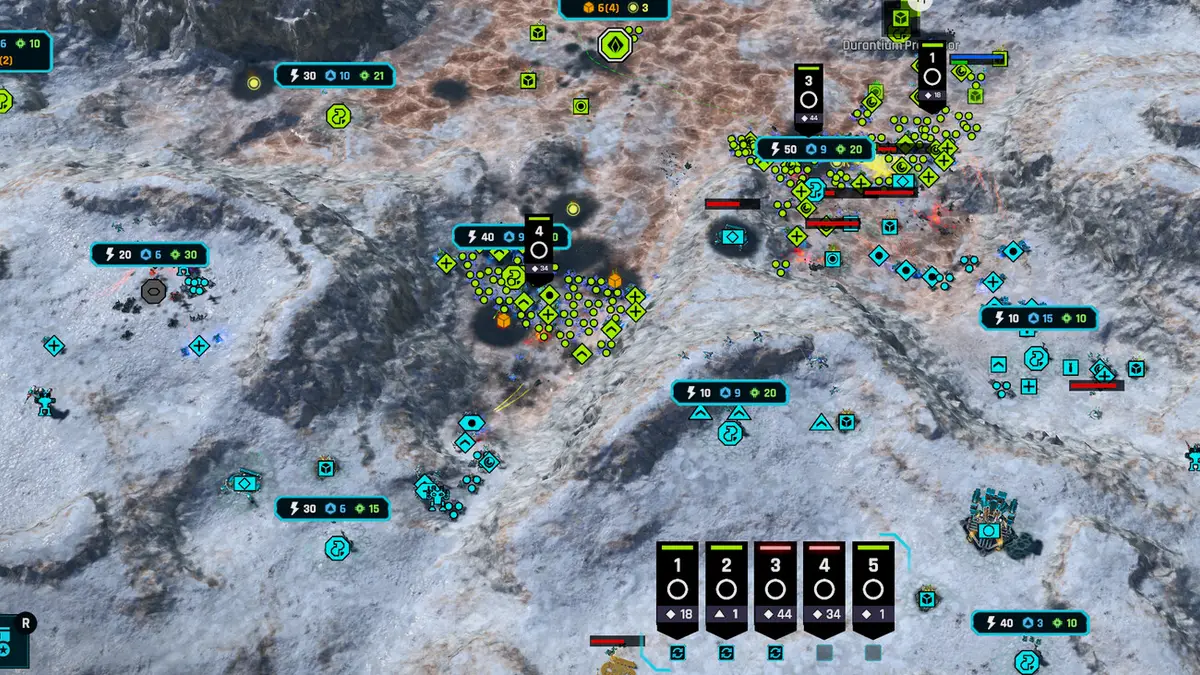
The best settings for Ashes of the Singularity II depend on one question: do you want the campaign to look good, or do you want multiplayer fights to stay above 50 FPS? The game has few graphics options and no upscaling, so the answer is mostly a resolution-and-preset decision.
Below are three configurations: one for a mid-range GPU, one for a high-end GPU and one for a laptop or low-end machine. Each assumes the launch build and the November 10 hotfix.
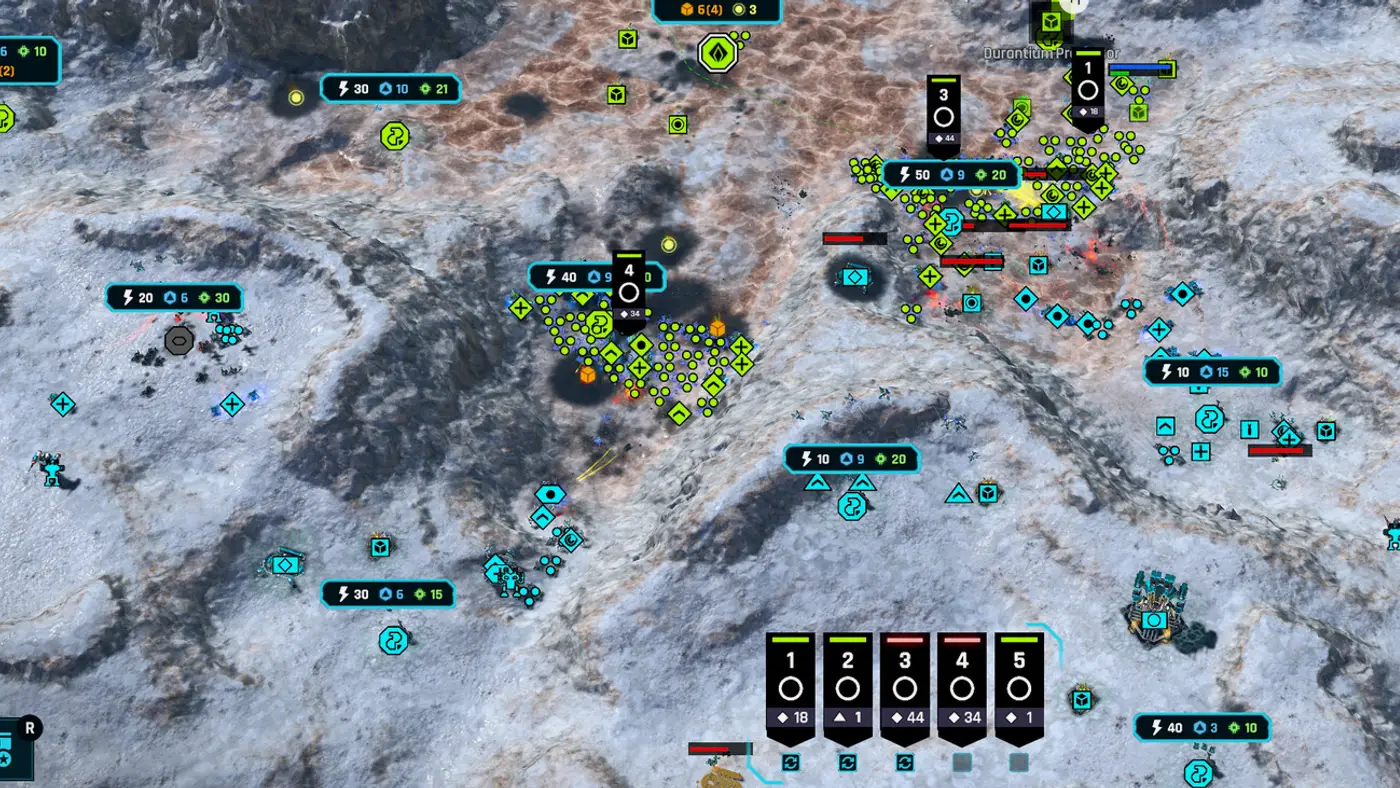
Frame rates come from published launch-week tests. Driver updates and patches can shift these numbers.
Configuration 1: mid-range (RTX 3060 / RX 6600 class)
| Setting | Value |
|---|---|
| Resolution | 1920×1080 |
| Preset | Medium |
| VSync | Off |
| Frame cap | 60 |
| Shadows | Low, if separate |
| Effects | Medium |
| Anti-aliasing | Off or lowest |
This is the configuration Notebookcheck measured at around 50 FPS in 1080p Medium. Expect 45–55 FPS in normal battles and dips in the largest fights. If you need more, drop to 1600×900; the game has no upscaler, so a lower resolution is the only real scaling option.
Configuration 2: high-end (RTX 4070 / RX 7800 class and up)
| Setting | Value |
|---|---|
| Resolution | 2560×1440 |
| Preset | High |
| VSync | Off |
| Frame cap | Monitor refresh rate |
| Shadows | High |
| Effects | High |
1440p High is the sweet spot for this game. It looks close to Extreme and leaves headroom for the simulation. On a 4K display, try 4K High first; if the late-game fights drop below 40 FPS, switch to 1440p. The visual difference at normal viewing distance is smaller than the frame difference.
Configuration 3: laptop or low-end
| Setting | Value |
|---|---|
| Resolution | 1920×1080 or 1600×900 |
| Preset | Low or Medium |
| VSync | Off |
| Frame cap | 60 |
| Power mode | Plugged in, high performance |
Laptops are the worst case for this game because the CPU and GPU share a power budget. Plug in, set the Windows power plan to High Performance and make sure the laptop is not thermal-throttling before you blame the game. Notebookcheck's RTX 3060 mobile result (40–50 FPS at 1080p) is a reasonable target.
If you are on an Intel Arc GPU, check the driver first. Launch reports describe missing textures and launch failures on some Arc models.
Why VSync off
VSync caps the frame rate to the display refresh and adds latency. In an RTS with thousands of units, input latency makes orders feel unresponsive even when the frame rate is fine. Turn VSync off and use a frame cap slightly below your refresh rate if you see tearing.
Why the restart matters
The launch build requires a client restart after any graphics change. That makes settings testing slow, so be systematic:
- Load a saved battle with a known unit count.
- Note the frame rate in a fixed camera position.
- Change one setting.
- Restart, reload, measure again.
Do not change five settings at once. You will not know which one helped, and you may end up with a worse-looking game for no gain.
Windows-level tweaks
- Game Mode: on. It reduces background interference.
- Hardware-accelerated GPU scheduling: on if your driver supports it.
- Power plan: High Performance or Ultimate Performance on a desktop; plugged-in performance mode on a laptop.
- Background apps: close browsers and capture software. An RTS simulation is CPU-hungry, and background processes compete for the same cores.
- Storage: install on an SSD. The game lists 50 GB and an SSD in the requirements, and streaming assets from a hard drive adds stutter.
- Windows 11 Smart App Control: if the game will not launch, install the November 10 hotfix. The launch build had a Smart App Control conflict.
What not to bother with
Do not look for a DLSS or FSR toggle. The launch build has no upscaling. Do not edit an engine config file unless a patch note tells you to; there is no documented config workflow at launch. Do not disable core Windows security features to gain a few frames.
A note on 8-player games
No setting will make an 8-player, 10,000-unit battle run at 60 FPS on current hardware. The simulation is the limit. If you want smooth multiplayer, play 1v1 or 2v2 and accept that the biggest team games are a spectacle, not a competitive format.
For the next step, read Ashes of the Singularity II Performance Guide→.
FAQ
What is the best preset for Ashes of the Singularity II? High at 1440p on a high-end GPU, Medium at 1080p on a mid-range GPU. Extreme is not worth the frame cost in large battles.
Does the game support DLSS? No. There is no upscaling support at launch, so resolution is the main performance lever.
Why does the game ask for a restart after settings changes? The launch build requires it. Change one setting at a time and restart between tests.
Sources
Official source: Notebookcheck GPU benchmark ↗
Keep reading
Related Guides
Ashes of the Singularity II Performance Guide
Why Ashes of the Singularity II drops frames in big battles, what the benchmarks show and the settings changes that actually help.
Ashes of the Singularity II System Requirements
Official minimum and recommended specs for Ashes of the Singularity II, plus what they mean for 1080p, 1440p and large multiplayer battles.
Ashes of the Singularity II Multiplayer Guide
Multiplayer in Ashes of the Singularity II: army composition, scouting, team roles, the 100-unit army cap and the launch balance issues to know.
Ashes of the Singularity II Beginner Guide: First 20 Minutes
A practical opening for Ashes of the Singularity II: first build, region capture, Power and Logistics, army control and the mistakes that lose games.
Ashes of the Singularity II Achievements Guide
The confirmed achievement data for Ashes of the Singularity II, the fastest completion routes and why 30 of the 35 achievements are rare.
Ashes of the Singularity II Ashfall Caldera Map Guide
How to play Ashfall Caldera in Ashes of the Singularity II: the trench chokepoints, the best factions and the openings that survive the funnel.
More Ashes of the Singularity II Guides
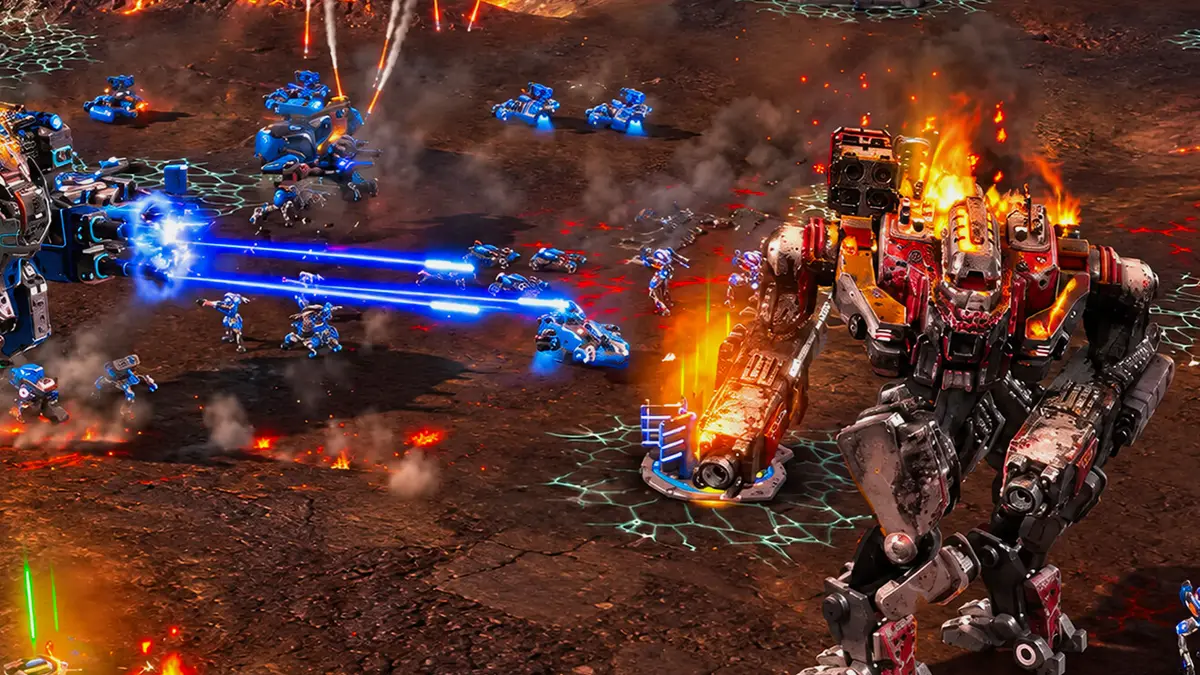
Ashes of the Singularity II Best Units Tier List
A launch tier list for Ashes of the Singularity II: the best units by role, the traps to avoid and the super units worth their logistics.
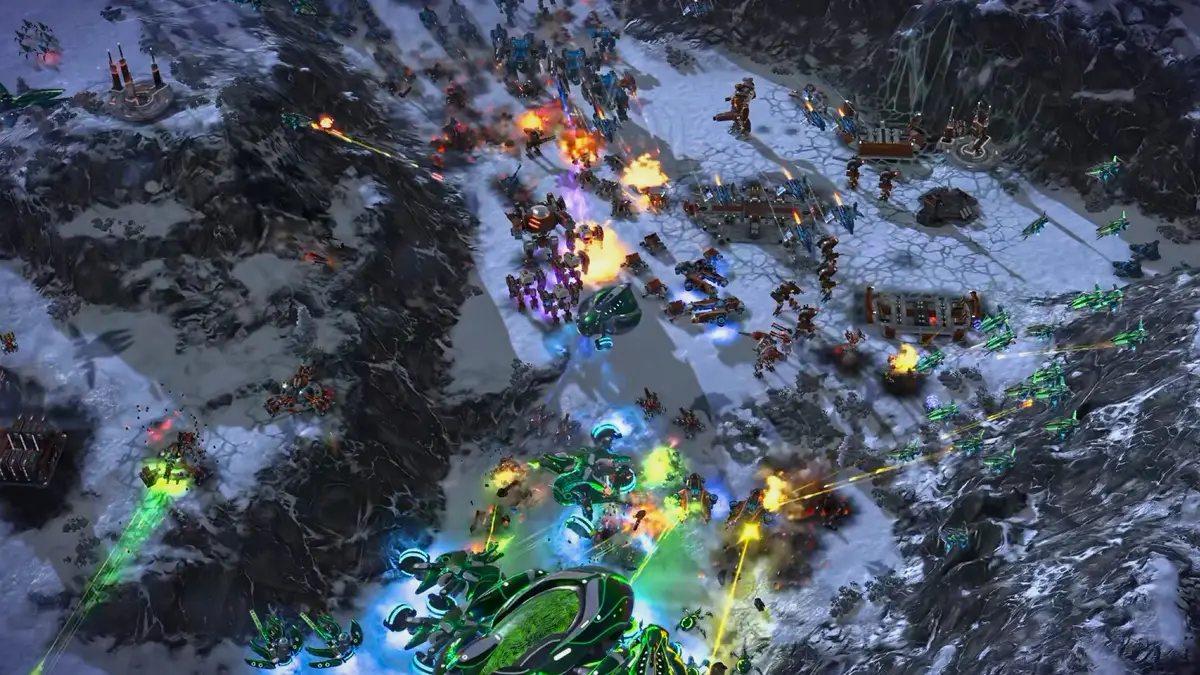
Ashes of the Singularity II Campaign Walkthrough
A spoiler-light walkthrough for the 10-mission Ashes of the Singularity II campaign: mission pacing, difficulty spikes, achievements and army tips.
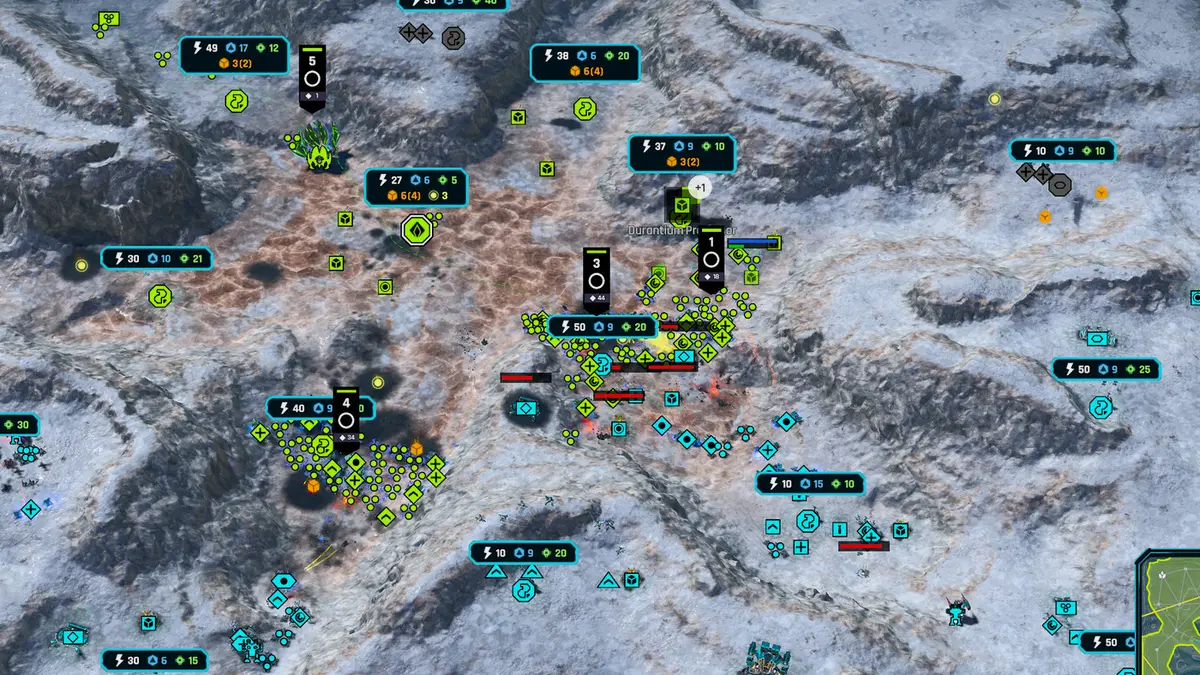
Ashes of the Singularity II Economy Guide
Durantium, Elerite and Quanta explained: extractors, refineries, region Power and the economic opening that beats a bigger army.
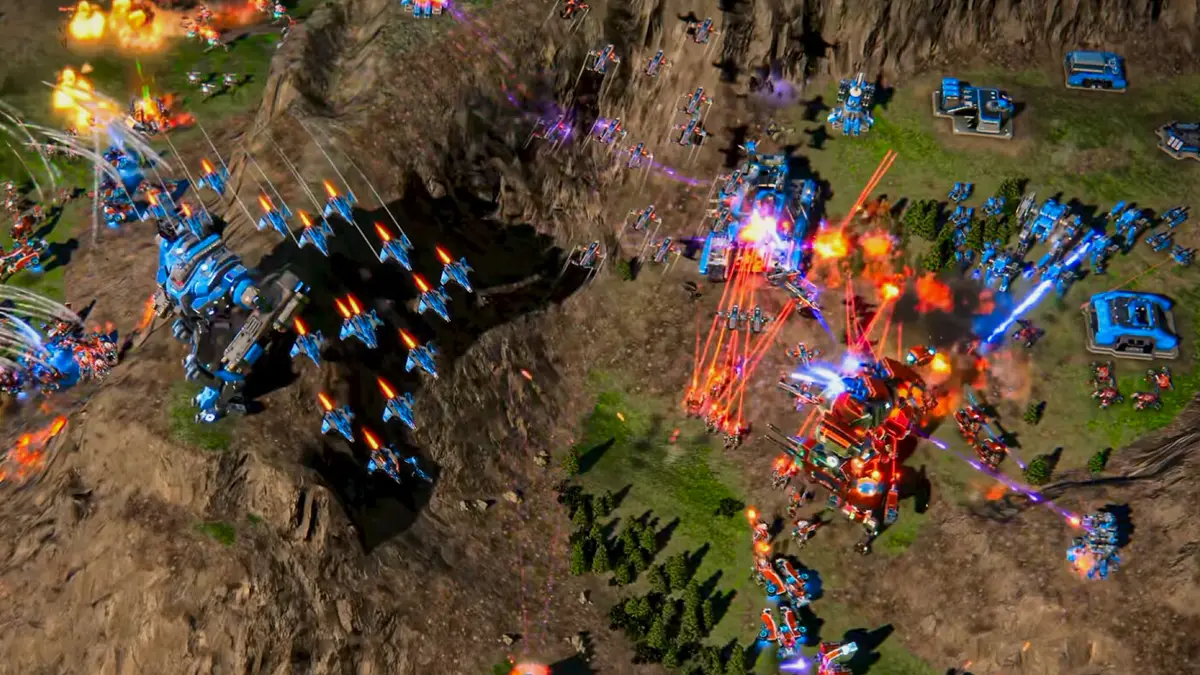
Ashes of the Singularity II Factions Guide
How UEF, PHC and Substrate actually differ in Ashes of the Singularity II: rosters, economy, defense, air and which faction to pick first.
Ashes of the Singularity II Maps Guide
The launch maps of Ashes of the Singularity II, from the small snow map Twin Lakes to the canyon map Scorched Divide, and how each shape changes your build.
Ashes of the Singularity II PHC Build Order
A Post-Human Coalition opening for Ashes of the Singularity II: Factory units, the Forge transition and the first Champion timing.
Ashes of the Singularity II PHC Units and Stats
All 20 Post-Human Coalition units in Ashes of the Singularity II: stats, costs, aircraft, commanders and the upgrade path to Hyperion.
Ashes of the Singularity II Substrate Build Order
A Substrate opening for Ashes of the Singularity II: cheap Hatchlings, the Eradicator timing, Reaper trades and the first Punisher.